Digital Download Doesn't Fit My Frame? Here's the Fix
You bought a printable, printed it or tried to resize it, and it doesn't match your frame — or it looks stretched and warped. That's a shape mismatch, not something you did wrong. Here's the two-minute fix.
Your file's shape vs. your frame's shape
Different shapes, not different quality — the overhang is what a crop trims away.
Quick Answer
Why doesn't my digital download fit my frame?
Why This Happens (It's Geometry, Not a Mistake)
Every print file is made in a fixed aspect ratio. An 8×10 file is a 4:5 rectangle. An 11×14 is roughly 4:5.1. A 16×24 poster is 2:3. Your frame is also a fixed shape — and there's no rule that the printable you downloaded and the frame you already own share the same one. That mismatch is completely normal; it happens to almost everyone who buys a printable for a frame they already had sitting around.
The problem shows up when you try to close that gap by resizing — dragging a corner or typing new dimensions into a tool that stretches the image to match. Stretch a 4:5 rectangle into a 2:3 frame and every element inside it gets pulled sideways: circles become ovals, faces widen, straight lines bend. It looks warped because it is warped — the math of forcing one shape into another guarantees it. Nothing about your file was wrong. The shape just needs to change on purpose, not by force.
What Most People Try First (and Why It Fails)
Dragging the resize handles in Preview or Windows Photos
Stretches the image to hit the new width and height. Faces widen, circles become ovals, straight lines bend — because nothing preserves the original proportions.
A free online resizer set to "exact dimensions"
Same stretch problem if the aspect-ratio lock is off, which it often is by default. The tool does exactly what you told it to — force the file into a shape it wasn't made for.
Asking the seller for a re-export
Can work, but it's slow, the seller may not offer that exact size, and shops close. You're stuck waiting on someone else for a file you already paid for.
The Right Fix: Crop to Your Frame, Don't Stretch to It
Resizing stretches every pixel to hit new dimensions. Cropping trims the file down to a new shape and keeps everything inside it at the correct proportions — no warping, no stretched faces, no bent lines. You lose a little at the edges (the same as matting a print or using a slightly smaller frame), but what remains looks exactly as it should.
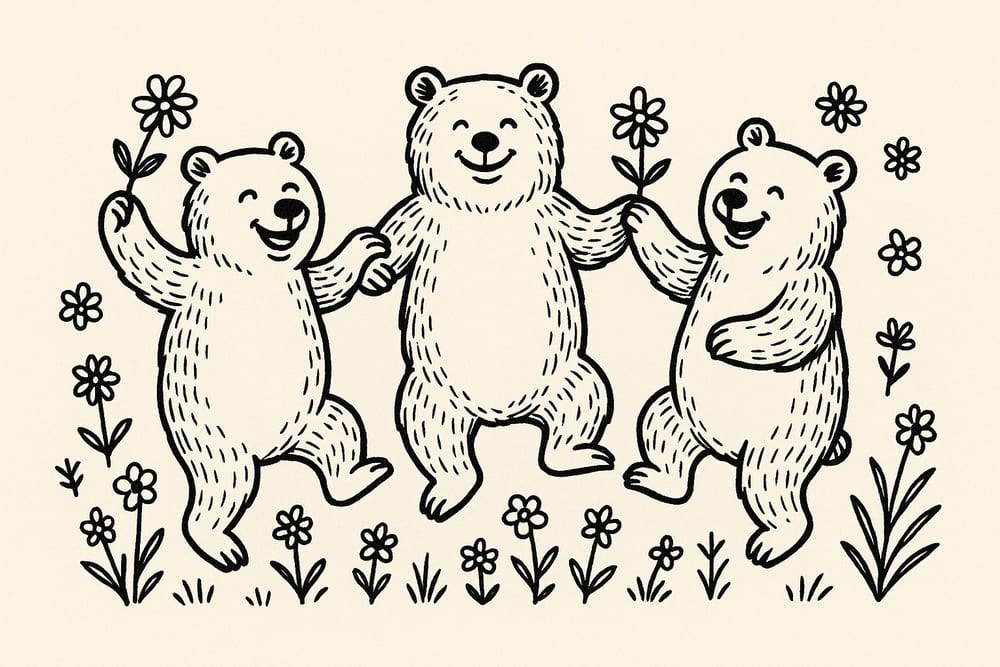
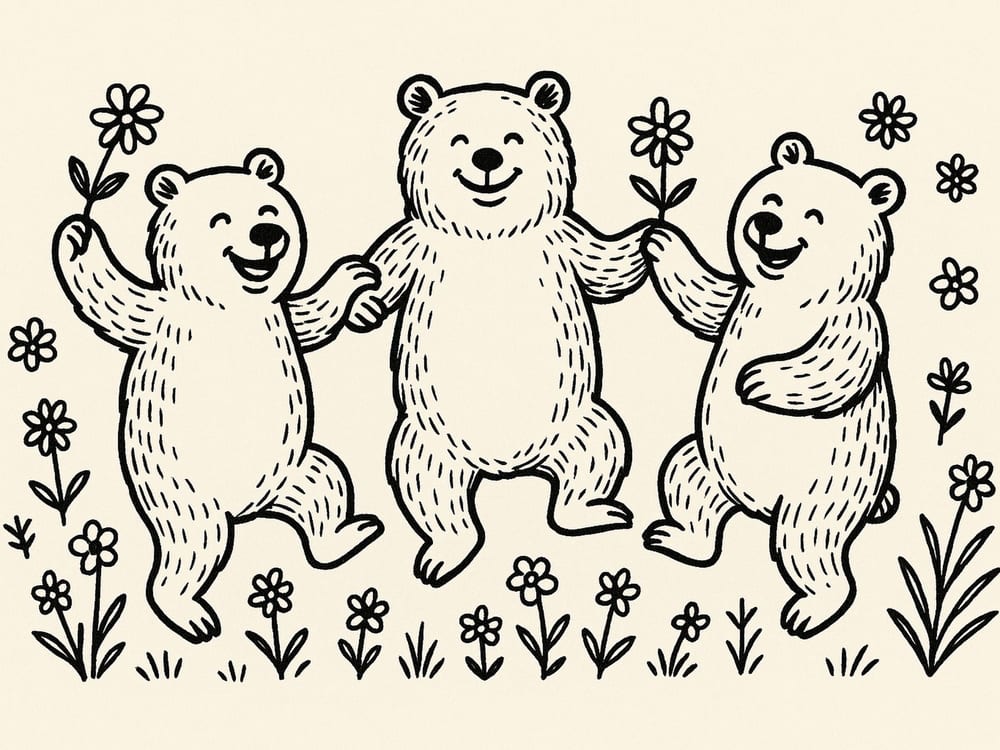
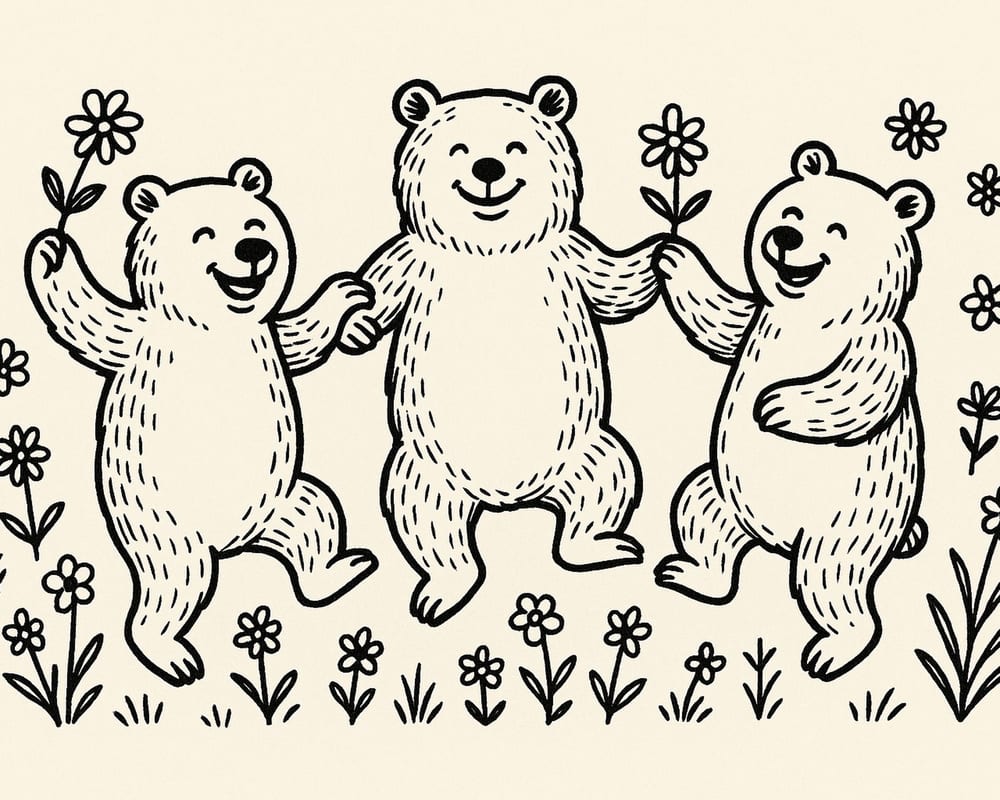
Same download, cropped to two different frame shapes. The subject stays full and correctly proportioned — only the empty margin around it changes.
Your printable and your frame are different shapes.
Fix It Without Stretching — upload your file, enter your frame size, get a properly cropped print in seconds.
Try Perfect Fit FreeNo account needed · No credit card required
How to Fix It With Perfect Fit
Perfect Fit is a single-file tool — you upload the one printable you downloaded, tell it your one frame's dimensions, and it crops that file to match. No batches, no multi-size packs, no extra steps meant for people selling files. Just your file, fit to your frame.
Upload the file you downloaded
Drop in the JPG, PNG, or WEBP you already have. No conversion needed first.
Enter your frame's dimensions
Type in your frame's width and height, standard or custom — any size works.
See exactly what stays before you commit
Perfect Fit shows a live preview of the crop. Drag to reposition it — no guessing, no distortion.
Download a print-ready file
Get a file sized exactly to your frame, ready to print at 300 DPI.
Want to see the crop before you download it?
No Distortion, No Guesswork — preview exactly what gets cropped, then download a file sized to your frame.
Fit My File to My FrameNo account needed · No credit card required
What If My Frame Is a Weird or Non-Standard Size?
Perfect Fit isn't limited to standard frame sizes — enter any custom width and height and it crops to that exact dimension. That makes it useful for thrifted frames, vintage finds, or gifted frames with measurements that don't match a size chart anywhere.
If you'd rather check standard frame sizes against common print dimensions first, the print size for frame guide is a reference chart for that. This page is for when you already have one specific file and one specific frame that don't match — and you just want it fixed.
Curious why print files come in fixed ratios in the first place? See how print ratios work. If your issue is blurriness rather than shape, that's a different problem — see why digital downloads print blurry instead.
One file, one frame, done
Upload your download, enter your frame size, and get a properly cropped, print-ready file in seconds.
Start Free — Crop to My FrameFAQ — Digital Download Doesn't Fit My Frame
You resized it, which stretches every pixel to hit new dimensions, instead of cropping it, which trims the file to a new shape without warping anything. Dragging an image to fit different dimensions without locking its proportions distorts everything proportionally — circles turn into ovals, faces widen, straight lines bend. Cropping to your frame's exact aspect ratio avoids that entirely.
Yes — crop the file to your frame's exact aspect ratio instead of buying a new frame or a mat. Perfect Fit does this from one upload in seconds: you enter your frame's dimensions, see exactly what will be kept before you commit, and download a file sized to match.
Some trimming is unavoidable when your file and your frame are different shapes — that's true of any crop, anywhere. What's different is control: Perfect Fit shows you a live preview and lets you drag to reposition the crop before you download, so you decide exactly what stays and what goes, instead of a tool guessing for you.
Yes. Enter any custom width and height and Perfect Fit crops to that exact dimension — no need for your frame to match a standard size chart. This works well for thrifted, vintage, or gifted frames with odd measurements.
No. Perfect Fit runs in your browser — upload your file, enter your frame size, drag to set the crop, download. No design software, layers, or ratio math required.
Yes — you can crop and export on the free tier, no signup required. Free exports are clean — no watermark; Pro lifts the daily export limit. For a one-off fix on a single printable, the free tier is enough to see if the crop looks right before you decide.
Not ready to fix a file yet, just want to know what you're working with? See pricing — Perfect Fit is free to try, with Pro lifting the daily limits.