Etsy Digital Download Prints Blurry?The fix is almost always resolution. Here's exactly how to check and correct it.
Your artwork looks sharp on screen but prints pixelated. The cause is the same nearly every time: not enough pixels for the print size. This guide shows you how to diagnose it, fix it, and prevent it from happening again.
Free → see exactly which sizes your file supports at 300 DPI.
Quick Answer
Why do Etsy digital download prints come out blurry?
Why Etsy Prints Come Out Blurry
Every digital image is made of pixels — tiny colored squares. When you print an image, those pixels get spread across physical inches of paper. If there aren't enough pixels, each one gets stretched larger than it should be, and you see blur, softness, or visible pixelation.
The measurement for this is DPI — dots per inch. It tells you how many pixels fit into one inch of the printed output. The professional print standard is 300 DPI. At 300 DPI, individual pixels are invisible to the human eye.
The problem? Most screens display images at 72 DPI. Your artwork looks perfect on a monitor because screens pack pixels densely. But a file designed for screen viewing doesn't have nearly enough pixels for print.
The difference at 8×10 inches
| DPI | Pixel Dimensions | Print Quality |
|---|---|---|
| 72 DPI | 576 × 720 | Blurry, pixelated |
| 150 DPI | 1200 × 1500 | Soft, noticeably lower quality |
| 300 DPI | 2400 × 3000 | Sharp, professional quality |
A 72 DPI file has less than 6% of the pixels a 300 DPI file has. The printer stretches those few pixels across the full 8×10 inches, creating visible blur.
This is why the same file that looks perfect as your Etsy listing image looks terrible when a buyer prints it (learn the correct Etsy listing photo dimensions to avoid confusing listing photos with print files). Screens are forgiving. Paper is not. For the full breakdown, see our best resolution for Etsy printables guide.
The 300 DPI Rule — One Formula for Every Size
The formula is simple: inches × 300 = pixels needed. That's it. No complicated math. No special tools required.
For an 8×10 print: 8 × 300 = 2400 pixels wide, 10 × 300 = 3000 pixels tall. Your file must be at least 2400×3000 pixels. Anything less will blur.
Pixel requirements for popular Etsy print sizes
| Print Size | Pixels @ 300 DPI | Ratio |
|---|---|---|
| 5×7 | 1500 × 2100 | Extras |
| 8×10 | 2400 × 3000 | 4:5 |
| 8.5×11 | 2550 × 3300 | Extras |
| 11×14 | 3300 × 4200 | Extras |
| 12×16 | 3600 × 4800 | 3:4 |
| 16×20 | 4800 × 6000 | 4:5 |
| 18×24 | 5400 × 7200 | 3:4 |
| 20×30 | 6000 × 9000 | 2:3 |
| 24×36 | 7200 × 10800 | 2:3 |
| A4 | 2480 × 3508 | ISO |
For all 30 sizes across every ratio, see the complete Etsy print sizes guide.
Notice the largest sizes need serious resolution. A 24×36 print requires 7200×10800 pixels. If your source file is smaller than that, the 24×36 output will be soft or blurry. Start with the highest resolution source you can.
Check Your Files Instantly
Drop your image into the Print Size Calculator to see exactly which sizes it supports at 300 DPI — and which ones will print blurry.
Open Print Size CalculatorHow to Check Your File's Resolution
Ignore the “DPI” metadata tag in your file. That number can be set to anything and doesn't change the actual pixel count. What matters is the pixel dimensions — the total number of pixels wide and tall.
On Windows
Right-click the image file → Properties → Details tab. Look for “Width” and “Height” in pixels. Compare those numbers to the table above.
On Mac
Select the file in Finder → press Command+I (Get Info). Or open in Preview → Tools → Show Inspector. The pixel dimensions appear under “Image dimensions.”
In any design tool
Check your canvas or document size. Look for pixel dimensions (not inches). If your design tool shows inches, multiply by 300 to get the pixel count you need.
Quick test: If your file is 2400×3000 pixels or larger, it will print sharply at 8×10. If it's under 1500×2100, it won't even print cleanly at 5×7.
Three Common Causes of Blurry Prints
1. Source file too small
You designed at screen resolution (72 DPI or 1080×1080 for Instagram). The canvas was fine for digital use but has nowhere near enough pixels for print. An 8×10 at 72 DPI is only 576×720 pixels — a fraction of the 2400×3000 needed.
2. Wrong export settings
Your design tool exported the file at 72 DPI instead of 300 DPI. Many tools default to screen resolution. In your export dialog, always set resolution to 300 DPI and verify the pixel dimensions match the target size. Save as JPG (also called JPEG) for best results — see our best file format for Etsy printables guide.
3. Upscaling a small image
You tried to enlarge a small file to get more pixels. Upscaling cannot add detail that doesn't exist in the original. A 1000×1000 image enlarged to 3000×3000 is just the same pixels stretched three times wider. It looks blurry because no new detail was created. If the high-resolution original is gone, an AI upscaler is the only route that adds pixels at all — SnapToSize's built-in AI Upscale reconstructs plausible detail into a larger master you can then export at every size.
How to Fix Blurry Prints
The fix starts at the source. You need a file with enough pixels to support the largest size you want to sell. Once you have that, every smaller size will be sharp too.
Minimum source size per ratio pack
Your source file must meet the largest size in each pack. If it does, every other size in that pack will be sharp.
| Ratio Pack | Largest Size | Minimum Pixels |
|---|---|---|
| 2:3 | 20×30 | 6000 × 9000 |
| 3:4 | 18×24 | 5400 × 7200 |
| 4:5 | 24×30 | 7200 × 9000 |
| ISO | A1 | 7016 × 9933 |
| Extras | 20×24 | 6000 × 7200 |
If your source file is large enough
Re-export from your design tool at 300 DPI with the correct pixel dimensions. Save as JPG (also called JPEG) with sRGB color profile. Then generate all sizes from that single high-res file.
If your source file is too small
Go back to the original design (before export) and re-export at a higher resolution. If you designed at a fixed pixel size, recreate the design at the larger canvas size. Do not upscale the exported file — that won't add real detail.
For a step-by-step walkthrough of exporting at the right settings, see how to resize images for Etsy.
The Fix at Print Scale — Drag to Compare
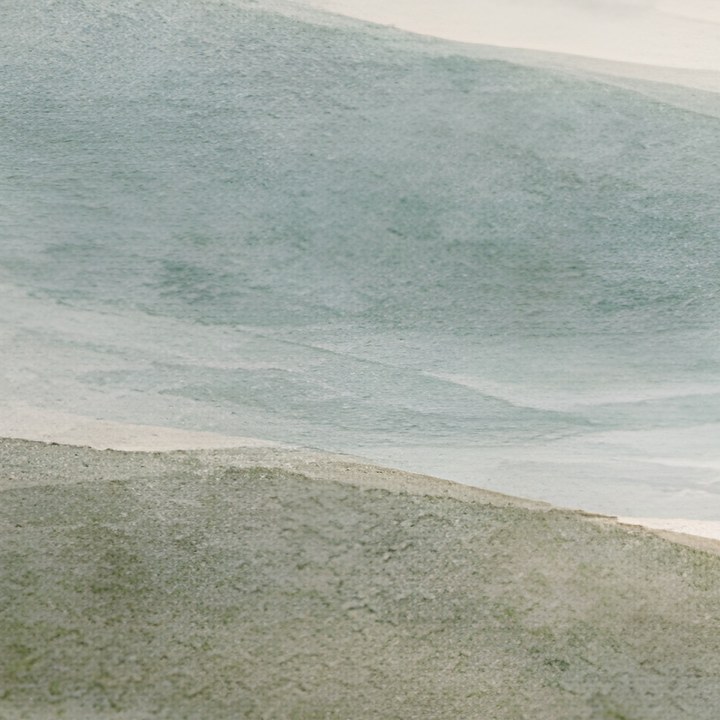
Genuine, unedited output — the same watercolor detail from both files, shown at 24×36 print scale. Left: a 1,024px file enlarged the way a print lab would, which is exactly the blur buyers complain about. Right: the same file after SnapToSize's built-in AI Upscale — 7,168×10,752px, real paper grain instead of mush.
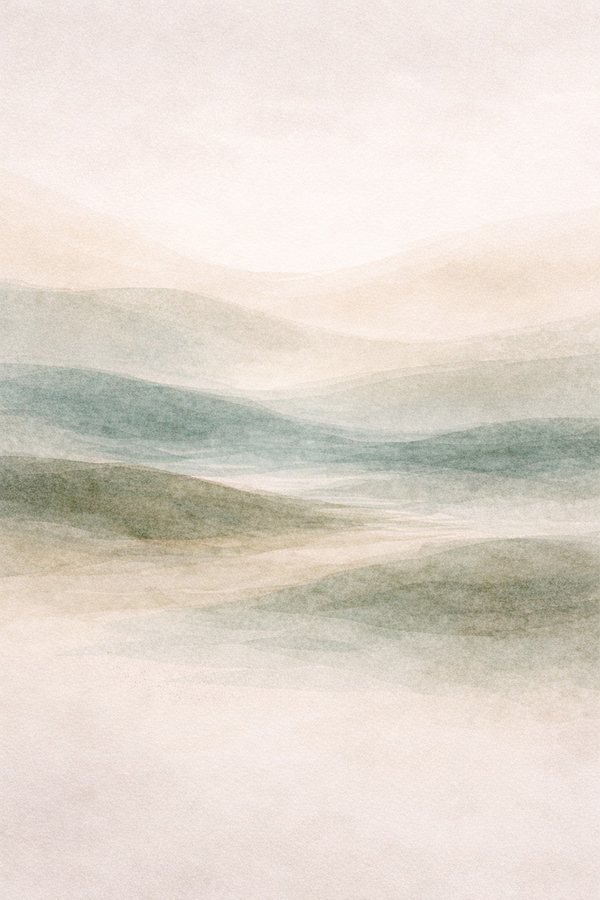
The slider zooms into the highlighted section of this artwork — print-scale detail, where blur shows first.
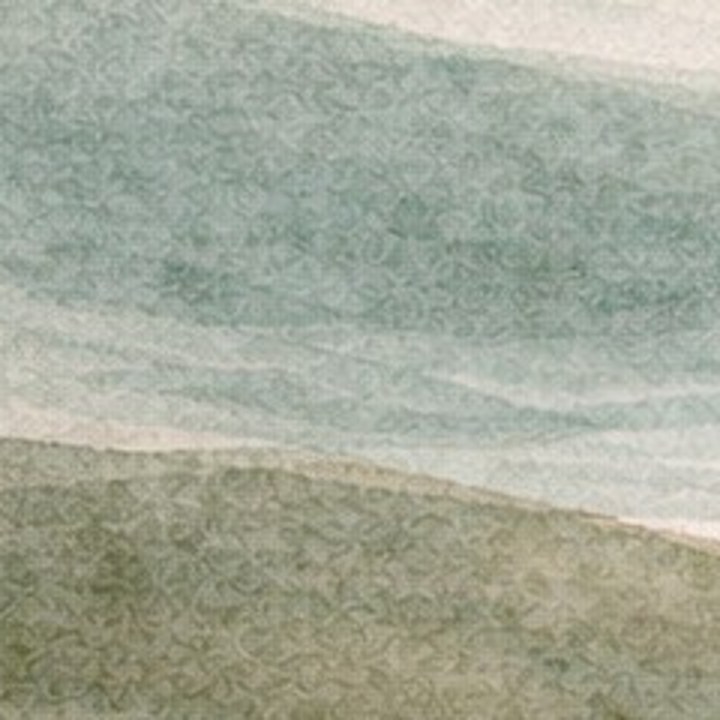
Free plans include 3 upscales per month — try AI Upscale on your own file, then export every size from the crisp master.
What Buyers See vs. What You Uploaded
There's an important distinction that confuses many sellers: the listing preview images on Etsy are not the download files.
Etsy compresses your listing images for fast website loading. The photos buyers see while browsing are displayed at screen resolution. They might look softer than your original — that's normal, and it's not a bug.
The actual download files are delivered exactly as you uploaded them. If your download files are 300 DPI with correct pixel dimensions, they will print perfectly regardless of how the listing preview looks.
Listing preview (on Etsy)
- •Compressed by Etsy for fast loading
- •Screen resolution (72 DPI equivalent)
- •May look soft — that's expected
Download file (what buyer prints)
- •Delivered exactly as uploaded
- •Full 300 DPI resolution preserved
- •Prints sharp if pixels are correct
If a buyer complains about blurry prints, the issue is in the download file resolution — not the listing preview. Check the pixel dimensions of the actual files they received.
Prevent Blurry Prints Permanently
The simplest way to guarantee sharp prints at every size: upload your artwork at the highest resolution you have, and let a tool handle the math for every output size.
How SnapToSize prevents blurry prints
No more calculating pixel dimensions manually. No more guessing whether your export settings are right. No more buyer complaints about blurry prints. Upload once, get everything at 300 DPI, ready to list on Etsy.
Every size at 300 DPI — no blur, from one upload
Drop in your art once. Get it back at every ratio, your whole image kept, each file named and 300 DPI, ready to list in 45 seconds.
Every standard Etsy ratio — 2:3, 3:4, 4:5, ISO A, plus extras — up to 70 print-ready files from one upload, each ZIP under Etsy's 20 MB limit.
Want one exact ratio instead? Perfect Fit reframes with a focal crop you control — your proportions stay exact, and you decide what stays in frame. See how it works →
Stop Guessing, Start Selling Sharp Prints
Upload your artwork at maximum resolution. Get all 30 sizes across 5 ratio packs at 300 DPI — organized, named, and under 20 MB. No blurry prints. No manual resizing.
Start Free — Generate Sizes NowFrequently Asked Questions
Blurry prints happen when the file doesn't have enough pixels for the print size. Printing requires 300 pixels per inch (DPI). An 8×10 print needs 2400×3000 pixels. If your file has fewer pixels than the size demands, the printer stretches what's there, creating visible blur and pixelation.
300 DPI (dots per inch) is the professional print standard. Multiply each dimension in inches by 300 to get the required pixels. For example: 8×10 needs 2400×3000 pixels, 16×20 needs 4800×6000 pixels, and 24×36 needs 7200×10800 pixels.
Focus on pixel dimensions, not the DPI metadata tag. On Windows: right-click the file, select Properties, then the Details tab — look for pixel width and height. On Mac: open the file in Preview, then choose Tools → Show Inspector. Compare the pixel dimensions to the 300 DPI requirement for your target print size.
No. Changing the DPI metadata tag does not add pixels to the image. A 1000×1000 pixel image set to 300 DPI is still only 1000×1000 pixels — it will print clearly at 3.3×3.3 inches but blur at any larger size. The only real fix is starting with a file that has enough pixels.
Exactly 2400×3000 pixels. The math: 8 inches × 300 = 2400 pixels wide, 10 inches × 300 = 3000 pixels tall. Anything smaller will print blurry.
No. Etsy compresses listing images for fast loading on its website. The preview images buyers see look lower quality — that's normal. The actual download files are not compressed by Etsy. If your download files are 300 DPI with correct pixel dimensions, they will print perfectly regardless of how the preview looks.
Worried about blurry prints from your files?
SnapToSize guarantees 300 DPI at every size. Upload your artwork and every output is print-quality — verified automatically.
Fix Your Print QualityNo account needed · No credit card required